Communications screen overview
When you first load the communication screen the portal will automatically display the latest communications that your user has permission to see (see People - Staff for more information on permissions)
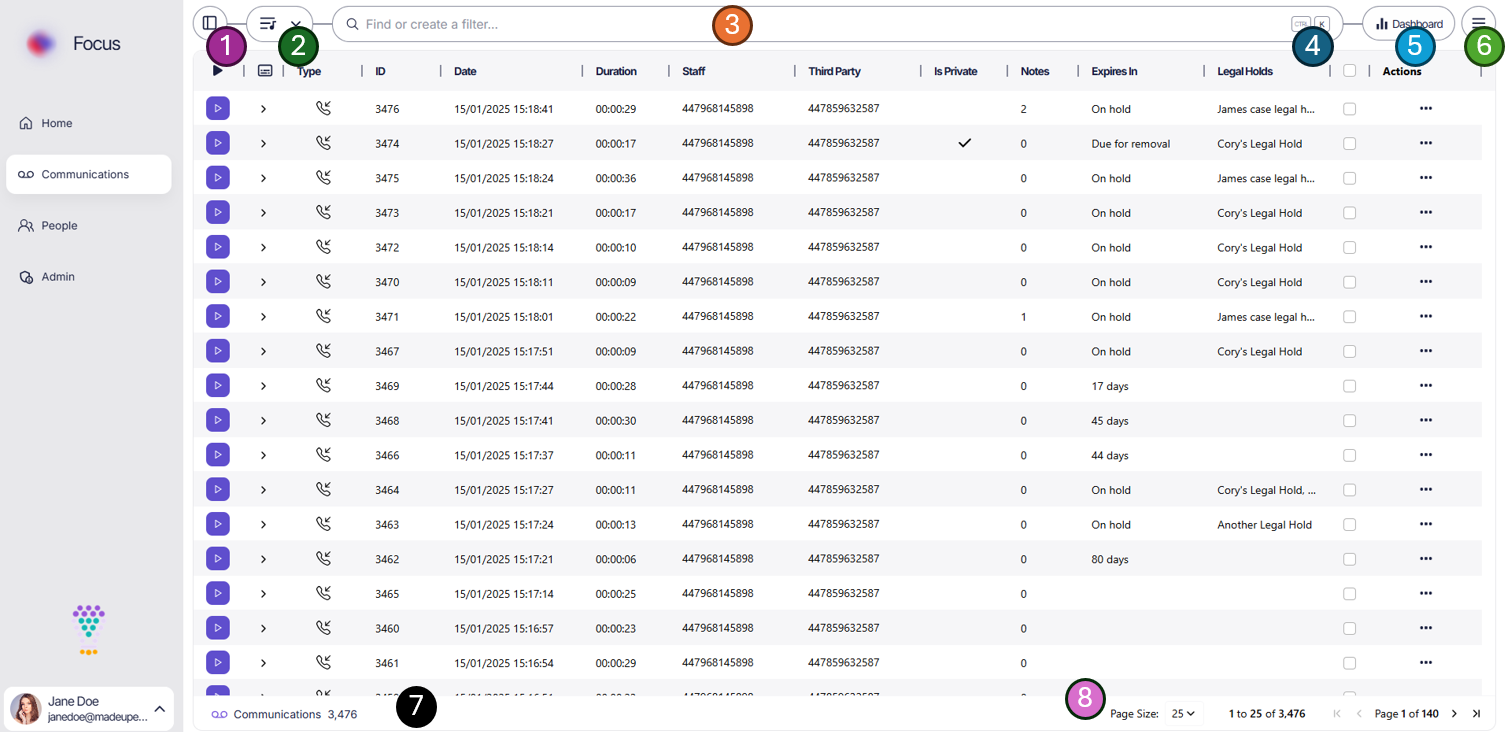
- Change the size of the menu bar (See Home - Menu options)
- Playlists - View current playlists and jump to a specific playlist
- Search - The Focus search bar lets you quickly find any communications you have access to
- Keyboard shortcuts - The search can be navigated via mouse or keyboard
- Dashboards - A link to the quick view dashboard
- Menu options - Get the latest communications or update your current filters with new results
- The total number of communications returned from your filter. When you first open the page this will be all active communications your user has permission to view. - See Results Grid for more information
- Page options and size - See Results Grid for more information
What's on this section
- Search — The Focus search bar, search categories, and saved searches.
- Menu options — Page options like refresh and reset grid layout.
- Results grid — Grid features, layout customisation, and single/multi-select actions.
- Playlists — Group communications into playlists for sharing and review (coming soon).
- Playback — The playback bar, conversation sidebar, transcripts, metadata and comments.
- Details view — The full-screen communication detail view.
- Reviews / QA — Structured reviews and quality assurance scoring (coming soon).
- Data Download/Export — Download single or multiple recordings, and export grid data to CSV/Excel.