Home page
The home screen of the Focus portal.
Quick Tour
Once logged into Focus, you'll land on the home page. The main menu on the left will provide access to key areas including communication search screen, user screens and admin sections. Each menu item has been thoughtfully designed for ease of use, allowing you to locate and explore the communications data you need quickly and efficiently.
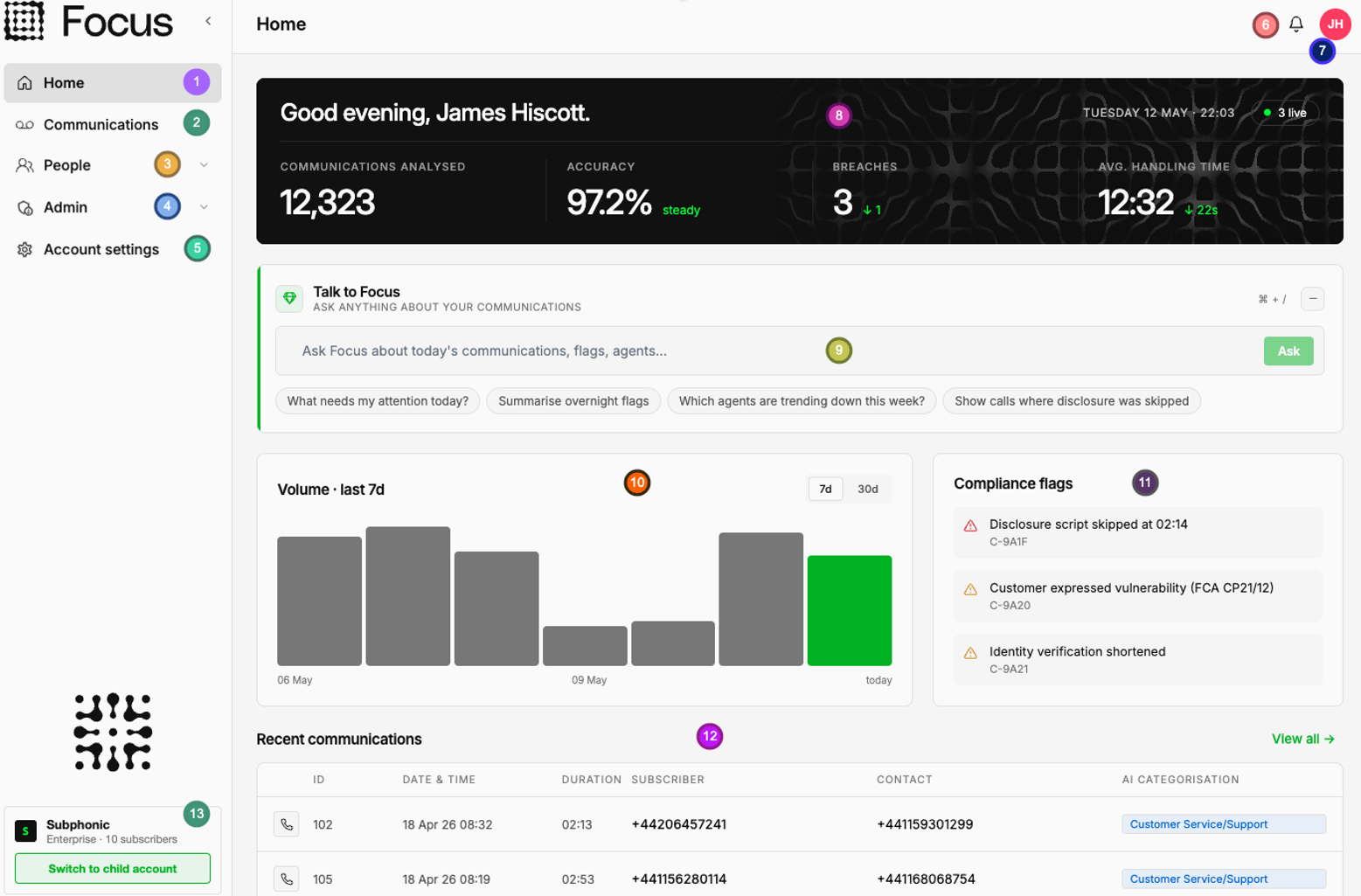
- We are currently on the Home page and this is shown by the highlighted section.
- Communications search - This is the hub of Focus and provides access to our super powerful search interface. More information on this screen is available within communications section
- People section - This section of the portal is for people management. More information on this screen is available within People section
- Admin - The administration section of the portal. This gives you access to retention, legal holds, reporting and more
- Account settings - This section gives access to all the account settings and focus options
- Alerts - Anything new that Focus wants you to focus on or understand will be shown within this section
- Profile - Quick settings, logout and profile options are kept within this popup. More information on this section is below is available within Profile section below
- My stats - A quick glance tile showing the total number of communications you have made over the last 7 days. (Permissions and user linking dependant)
- Talk to Focus - Your inbuilt AI that not only understands your data, it also understands your processes, people and communications. Focus AI will be able to answer your questions and create dynamic UIs from the simplest of questions. Focus AI is currently in Beta
- Your communications - This is a dynamic graph that will grow as you use Focus to show things you need to know, by default it will show your communications over the last 7 or 30 days. (Permissions and user linking dependant)
- Analysis actions - If enabled, anything that focus wants to draw your attention to from Analysis studio will show under this section.
- Latest communications - Quick access to the most recent communications with quick links to view and find them
Menu options
On any screen with lots of data (E.g. Communications screen), the menu can also be hidden to provide more screen space by selecting the button below.

The menu has three states:
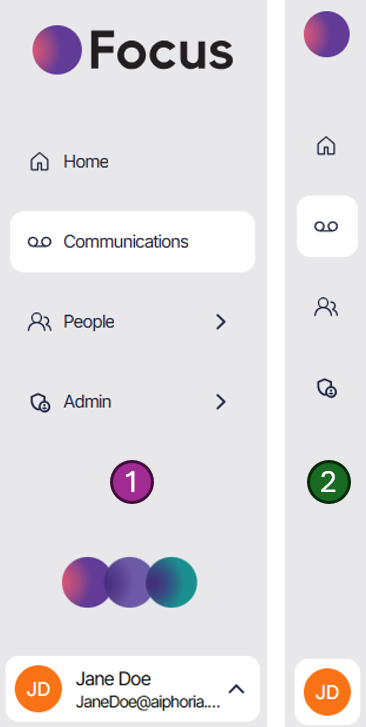
- Full menu - This is the default state and show the full name of the menu items
- Icons only - This state saves quite a bit of space but still allows for easy access to each section via the icons
- No menu - The menu can be completely hidden to save even more space
Profile and Quick settings
The profile section is visible at the bottom of the left hand menu. Clicking the profile section will expand the view to review any quick settings and an option to edit the profile.
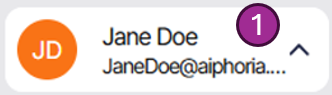
- Clicking anywhere in the profile summary section will load the quick options menu.
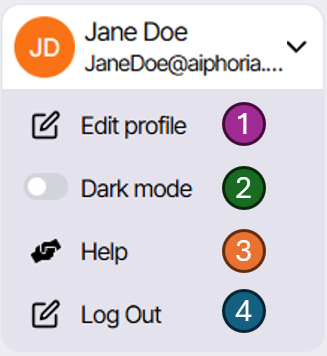
- Edit profile - This loads a popup allowing your profile data to be amended
- Theme toggle - The Theme toggle allows for quick switching between light and dark mode. Your selection will be saved
- Help - Quick access to the help documentation (this page) from any screen. Got a question, hit this button and you should find the answer
- Log out - If you wish to expressly logout of the portal this will force log you out. You will also be automatically logged out of the portal when your session expires
Edit profile
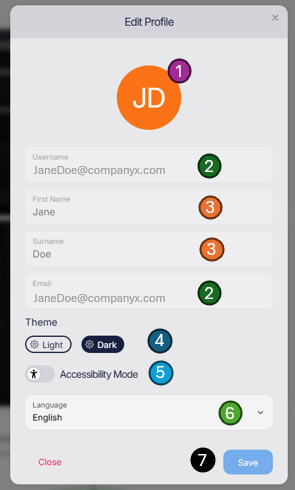
Selecting "Edit profile" will let the user update default profile information including:
- Your avatar - This is automatically generated from your name but lets you quickly find calls and comments by yourself.
- Email and username - In Focus your email address is your username. Note you can only edit this section if SSO is not enabled on your account.
- First / Surname - Your name, this is the name used throughout Focus.
- Theme option - Swap between light and dark mode for the portal.
- Accessibility mode - When enabled the Focus portal will change to a strict accessibility mode passing with a 100% Lighthouse score.
- Language - The Focus portal will change to your selected language.
- Save - Close and save any of your changes.
Themes
To enhance your experience, Focus includes a dark mode and light mode option, letting you adjust the visual theme to suit your preference and environment. Whether you're working late at night or in a bright office, these themes help ensure Focus remains comfortable to use, day or night. With these personalized settings and user-friendly navigation, Focus makes it easy to get acquainted with its powerful tools and to manage communications across multiple channels.
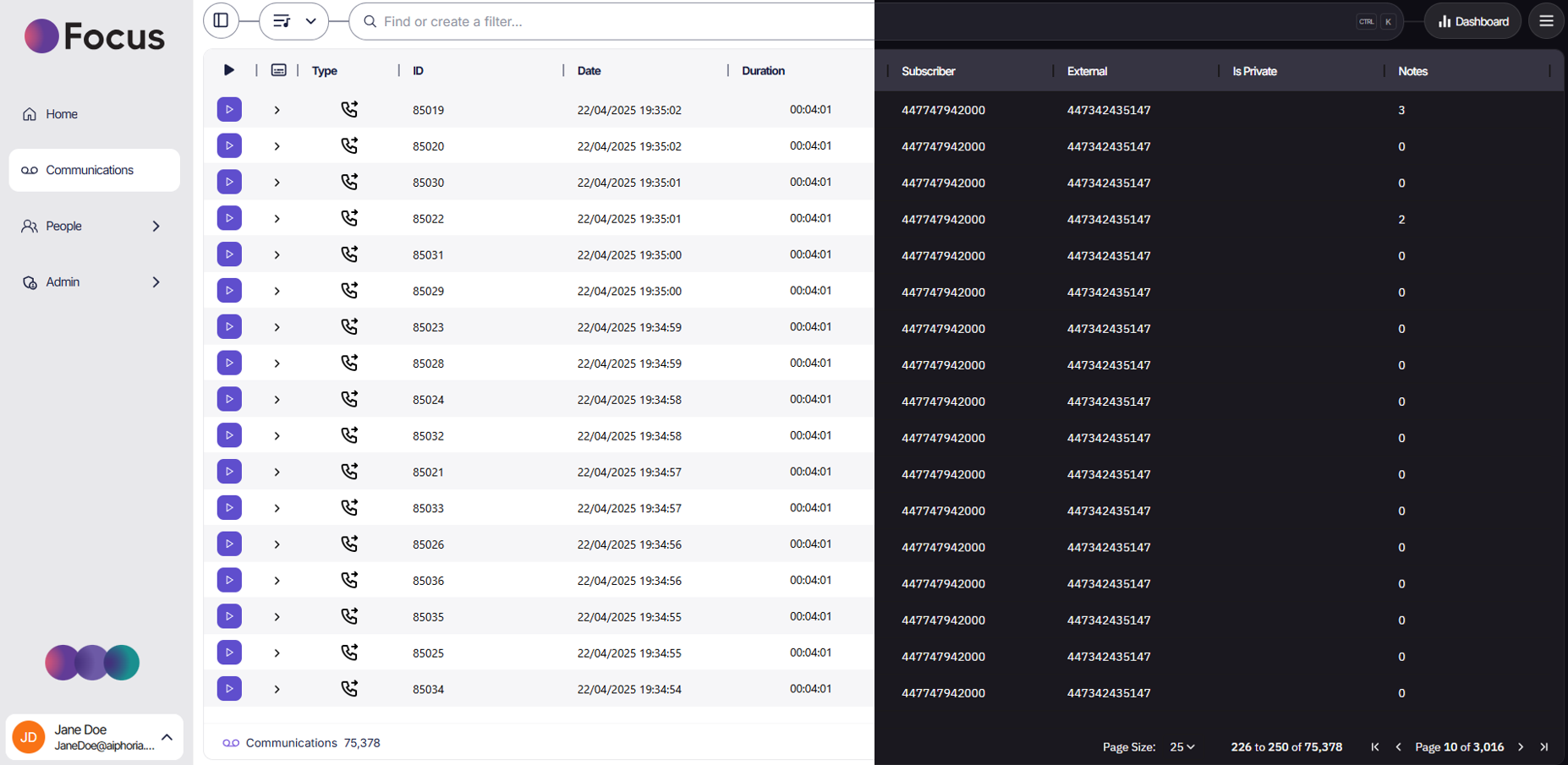
By default the portal will load using your browser selected theme, this can be over written via this setting.
Timeout
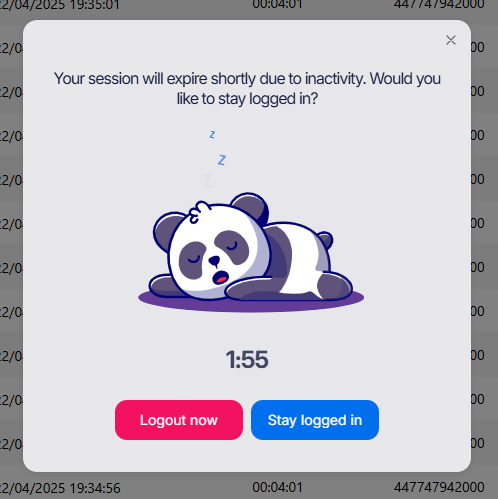
If you are inactive in the portal for security reasons you will be automatically logged out. If you are still active just reading a long transcript or digging into some data and wish to remain logged in a popup will alert you with a two minute warning before automatic logout.