Playback
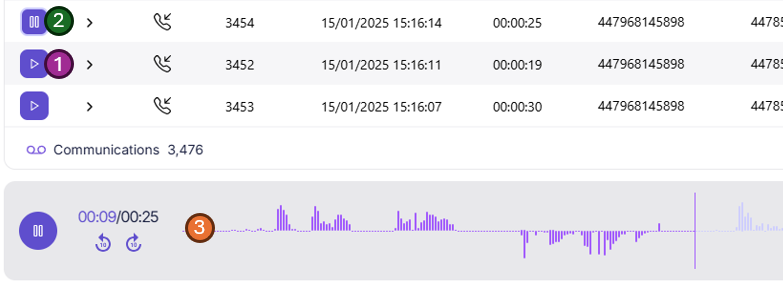
Communications with audio can be played back from within the communication search screen. Simply clicking the (1) "Play" icon  on any row within the playback grid will start playing that communication. If this is the first playback the playback bar will load beneath the grid (2). The selected calls play icon will also swap to a pause button (3).
Playback bar
The playback bar on both the search screen and communication detail view function the same way.

- Play/Pause button - Play or pause the currently selected communication
- Timer - The current time being played and the full length of the communication
- Skip buttons - Quickly skip forwards or backwards 10 seconds
- Wave form - A visual representation of the communication. If recorded in stereo, the recorded user (Subscriber) will be on the bottom of the waveform. You can quickly see any cross talking or silence and jump to or over such sections. Some helpful labels are displayed to help identify who is who, they can be disabled via the playback settings button (10).
- Comment marker - A comment that has been added at a specific timestamp. Clicking the comment will show the sidebar and load the comment information.
- Comment region - A comment that has bee added across a time range or region of the communication. Clicking the comment will show the sidebar and load the comment information.
- Playback location - The current playback location, this bar will move along with the audio file while being played.
- Jump marker - If you wish to jump the playback to a specific section of the communication a "jump bar" will show the time you will jump to before clicking on the playback bar.
- Load communication detail view - Load the currently playing communication in full screen (details) mode.
- Playback bar settings - Open the sub menu to change options on the playback bar.
- Show or hide the communication sidebar - Opens or closes the right hand sidebar for access to the metadata data, transcript and comments
- Close playback bar - This button will close the communication playback bar and stop the audio from playing, retuning the grid to full hight
Playback bar options
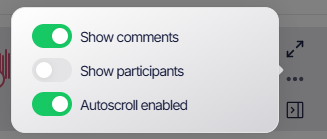
Options for the playback bar can be changed within the playback bar options menu.
- Show comments - This turns on or off comments and regions on the playback bar
- Show participants - Show or hide the participants labels on the playback bar
- Autoscroll enabled - This setting lets you disable the auto scroll of the transcript in the Conversation sidebar.
Conversation Sidebar
The conversation view sidebar gives you quick access to all the data about a communication without having to leave the communications grid. This is perfect if you are flicking through communications or trying to find something specific. If you need more space you can swap to the detailed full screen view quickly via the button in the top right.
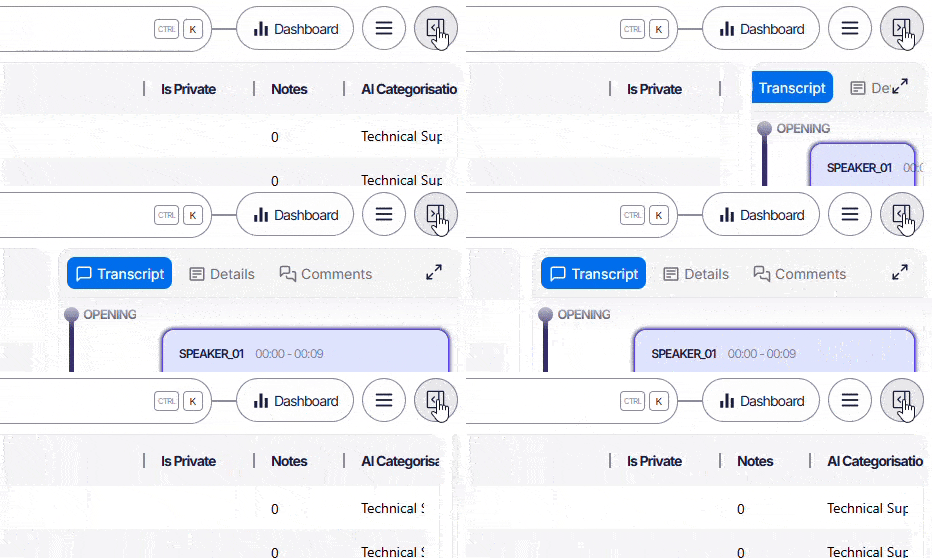
The Conversation Sidebar can only be opened if a communication is being played so if you can't see the above button, select a communication first. Once open it will stay open for each playback you do, you can change this by clicking the button again.
Transcript
If transcription is enabled on your account, the first tab will be the transcript of the recording.
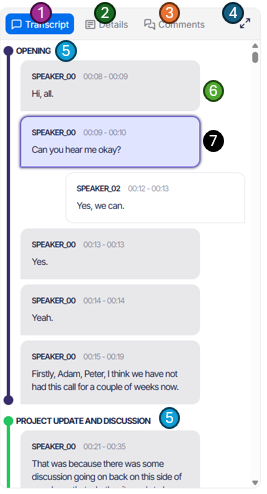
- The tab bar - With transcript selected.
- Communication details - Swap to the details (sometimes called metadata) about the currently selected communication. See Metadata section below for more information about this.
- Comments - View or add comments about this communication. See Comments section below for more information about this.
- Full screen toggle - Want more space, swap into full screen view. Most of the options are the same in this view but with more space to follow the transcript and type notes. See Communication detail view section below for more information about this.
- Transcript segments - The AI will automomatically create segments for each transcript. This lets you quickly jump over the "Hello, how was your weekend" opening section and get to the "Main section" of the communication.
- Transcript data - The main transcript data. This will show the subscriber on the left and other people in the communication on the right. Each box is selectable and playback will jump to that part of the call.
- Currently playing section - The currently playing part of the communication is highlighted in a blue glow. If "Autoscroll" is enabled under the Playback bar options then the transcript will scroll along as it plays.
Metadata
The Metadata tab will show any metadata Focus has about the communication.
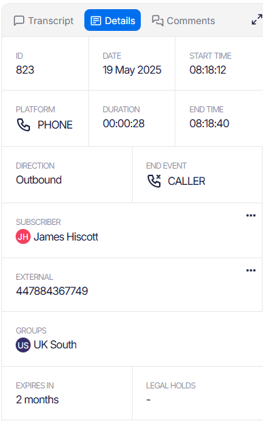
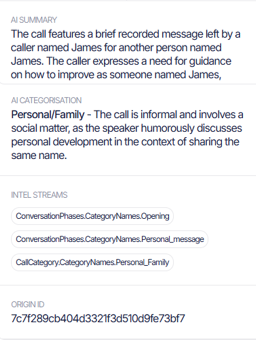
This data will change slightly depending on the type of call but Key highlights include:
- ID - A unique reference to this communication within the Focus platform.
- Origin ID - An ID given to Focus by the recording solution.
- Date and time information - Information about how long and the communication took place.
- From and To - Information about who the call was from and to. If Focus knows the name for the person this will be displayed instead of the number/GUID. This information can be set via the 3 dots menu (...) of via the people screen.
- Groups - Any groups the communication is tagged with (Searchable).
- Retention information - When the communication is due to expire and if it is currently on any legal holds.
- AI Data - All the AI data about the communication.
Any of the data on the metadata screen can be used within the search to find more communications matching similar data. See Search options for more information.
People options
Each person or party within the communication has a number of options accessed via the three dots menu on the metadata grid.
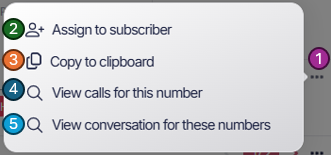
- Menu - Pressing this button will open the menu options
- Assign to a Subscriber / External - This option will let you assign the endpoint directly to a person from within the grid. Note: The person must already exist via the People screen.
- Copy to clipboard - This lets you quickly copy this number or endpoint to clipboard for use later in the search or other screens
- View communication for this number - Automatically add this number to the search as a filter, no need to copy and paste
- View communications for these numbers - Automatically search for communications between the two numbers to see a full history of communication between the two endpoints.
Multiple participants

If more than one person is involved with the communication then you will see a little count and arrow to scroll thought the participants .
Comments
The comments section lets you add comments to the communication. Comments can be one of 3 types:
General comments
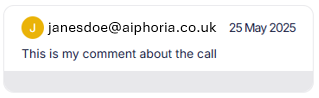
A general comment about the call, this is added via the comments section. Type the comment you wish to add and press "Submit".
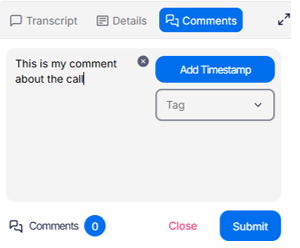
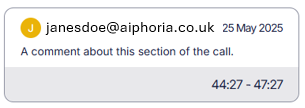
The comment will be added with your username and timestamp automatically.
Marker or Region comments
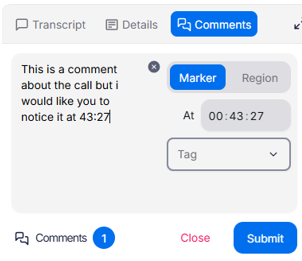
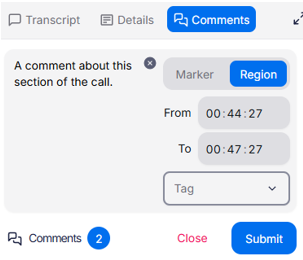
This comment will add a marker (single dot) or region (span) to the playback bar along with the comment.
To add a timestamp comment:
- Start by adding your comment in the same way by typing the comment
- Next, select the Add Timestamp button.
- Select Region or Marker
- The current playback time will be added by default to the start time of the marker or region. Update this as you wish
- Press save and you will see your comment added and the marker or region on the playback bar.
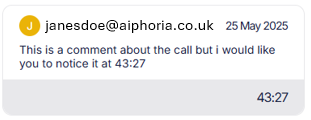
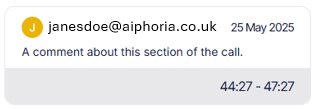
Selecting a Region or Marker on the timeline will open the comments section and highlight the selected comment within the Conversation sidebar.

Forced comments
If forced comments is enabled via the administration section of the Focus portal then a comment must be added before playback can begin.
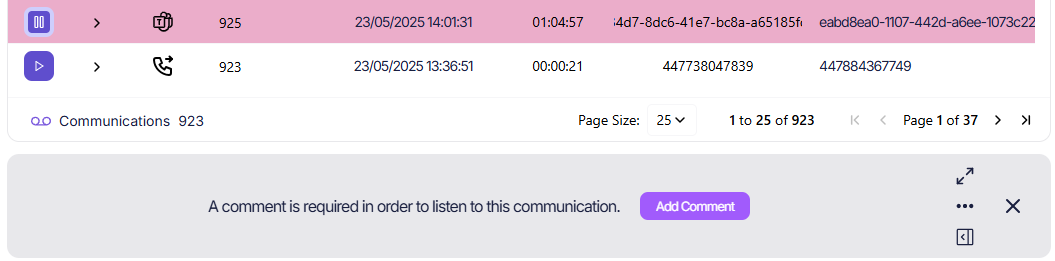
The playback bar will change to show the requirement and a button will ask the user to Add a comment
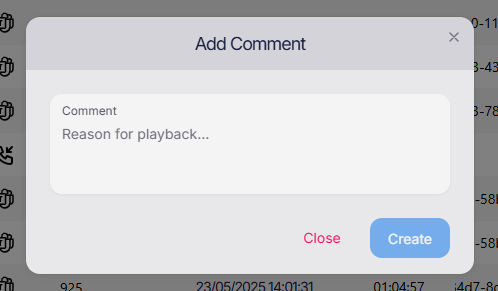
A windows will popup to ask for the comment, once completed the call playback will begin as normal.
If you select the same call again, within the same session, you will not be asked for a second comment but this will still cause an audit event for the second playback request.